Send only the window you choose.
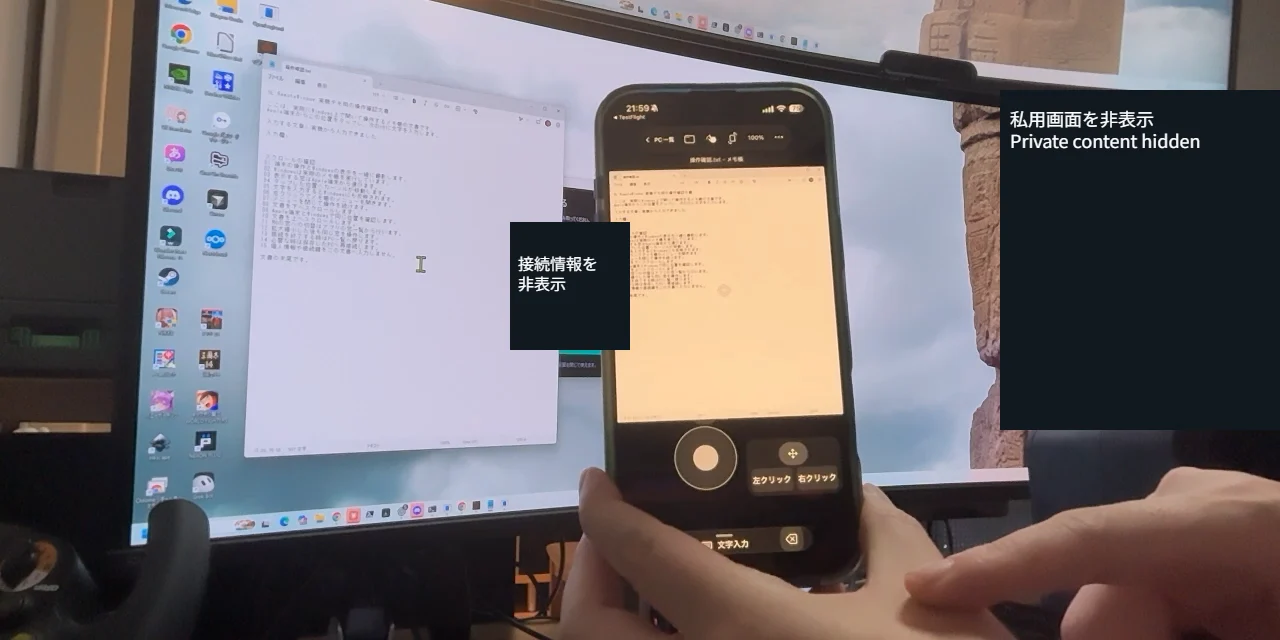
Pick the window you want to use instead of the whole desktop. While connected, switch to another window from the list.
 WINDOWS × iPHONE · iPAD日本語
YOUR WINDOWS WINDOW, IN YOUR HAND
OL RemoteWindow sends the window you choose on Windows, with that app’s audio, to your iPhone or iPad. Control it from there with taps, a mouse, a keyboard, or the on-screen stick.
The app and the Windows host app are free to download.
You need the Windows host app and a supported Windows PC. Connecting requires a subscription: JPY 300/month or JPY 3,000/year in Japan.
SEE · HEAR · CONTROL
Pick the window you want to use instead of the whole desktop. While connected, switch to another window from the list.
Along with the picture, OL RemoteWindow sends the audio of that window’s process.
Control the window with taps, a mouse, or a keyboard. Drag the handle to move the on-screen stick and the left- and right-click buttons.
Use Text Input at the bottom of the screen to send finished text, including Japanese, to Windows. The ⌫ key deletes text on the Windows side.
Pinch to zoom the picture in and out, so small text and buttons are easier to work with.
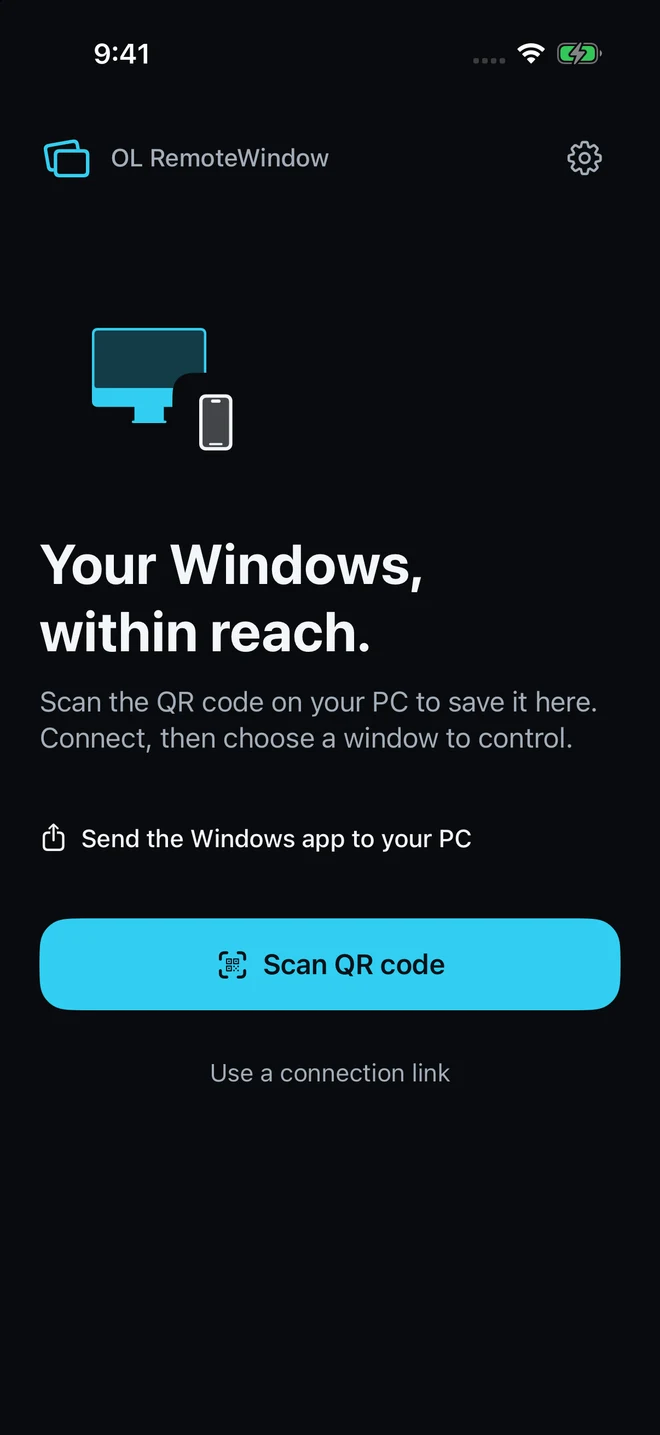
Scan the QR code shown on Windows, or save a connection link, to register your PC. A connection link contains a secret for connecting, so do not share it.
WHEN UAC APPEARS
With Windows confirmation notifications turned on, you are notified when a UAC prompt appears while the app is closed. Connect from the notification, open the prompt, and decide yourself whether to allow it. The app never approves a prompt automatically.
Requires the Windows resident app and service, and a signed-in Windows user. Notifications may not appear depending on notification permission, Focus, and network conditions on your iPhone or iPad. Some operations may be restricted by Windows permissions or the target app.
BUILT FROM OPENLOGICOOL
Building on technology developed for OpenLogicool, OL RemoteWindow turns window-level remote control into its own app. Window capture, per-process audio, video compression, and the display and control pieces of the Apple app were brought over as needed. You do not need OpenLogicool to use it.
SET UP YOUR PC
The Windows host app is free. You can also send the download page to your PC by email or message from the iPhone or iPad app.
Open the download page on your Windows PC and run the installer. Installing requires administrator permission so that remote input can reach Windows.
Start OL RemoteWindow and choose Connect to this PC from the tray to show a QR code.
Scan the QR code with the iPhone or iPad app, or save the connection link, to register your PC.
Choose a plan, connect, and pick the window to control from the list.
The Windows app is not code-signed, so Microsoft Defender SmartScreen or similar may show a warning. Check the publisher and file name before running it.
FREE TO GET · SUBSCRIBE TO CONNECT
Downloading the app from the App Store and the Windows host app are free. You can set up the app, register your PC, and view plans without a subscription.
Connecting, viewing, and controlling remotely require an active subscription.
Auto-renewing subscription · Japan
JPY 300 / month
JPY 3,000 / year
Choose monthly or yearly. Check the actual price and period on the purchase screen.
Payment is charged to your Apple Account when you confirm the purchase. The subscription renews automatically unless cancelled at least 24 hours before the current period ends. Manage or cancel it in your App Store account settings.
Get it on the App StoreFAQ
GET STARTED
App and Windows host app free · JPY 300/month or JPY 3,000/year in Japan to connect